
Generating and sharing the shareable link
Once a property profile looks the way you want it, you can generate a shareable link and send it to clients or colleagues. Here's where to find it and how to make the most of it.
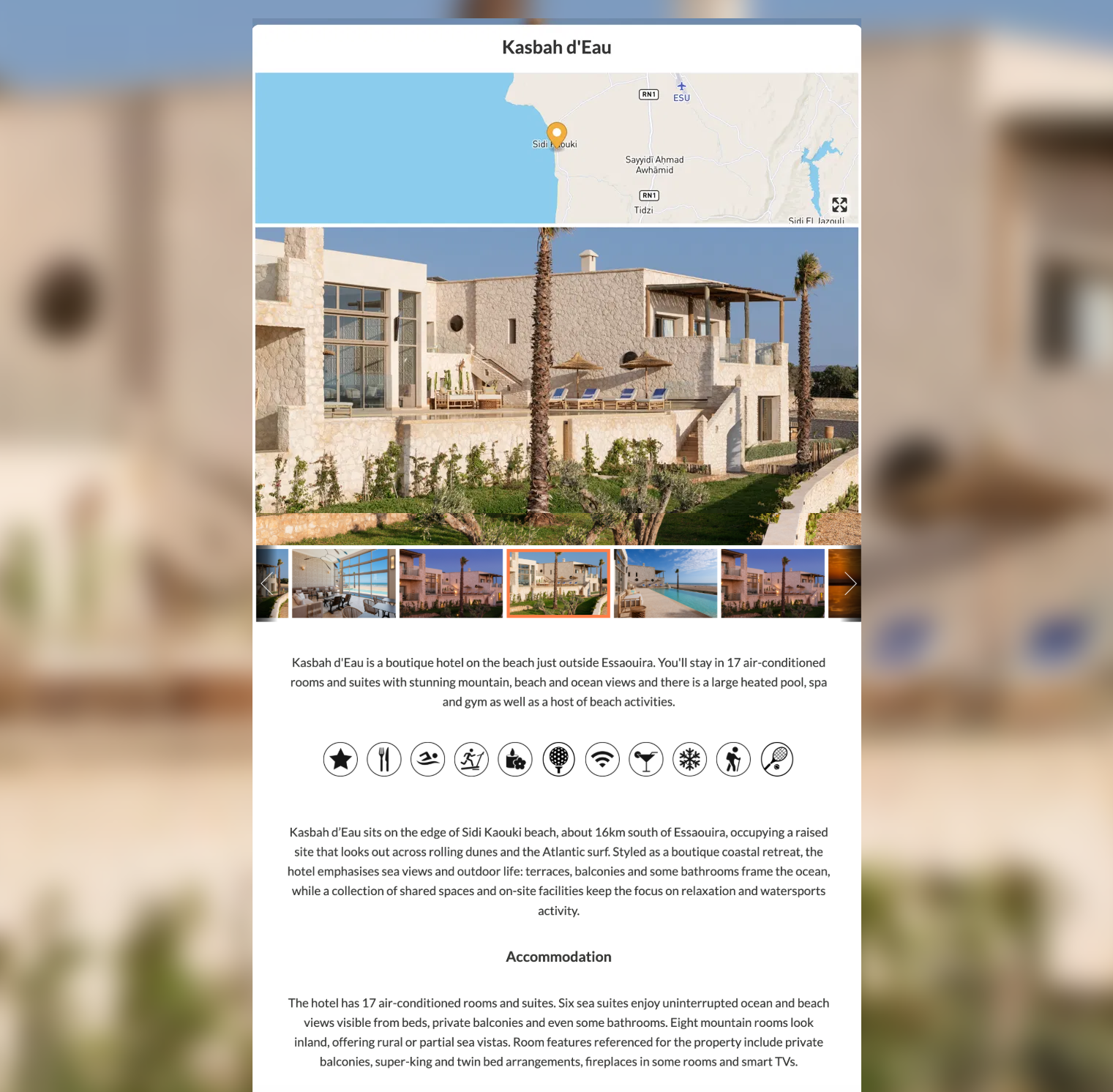
Where to find it
Open the property profile from your portfolio. In the top right, alongside View and Report, you'll see Share. Each link is specific to the property you're viewing, so generate it from the profile you want to send.
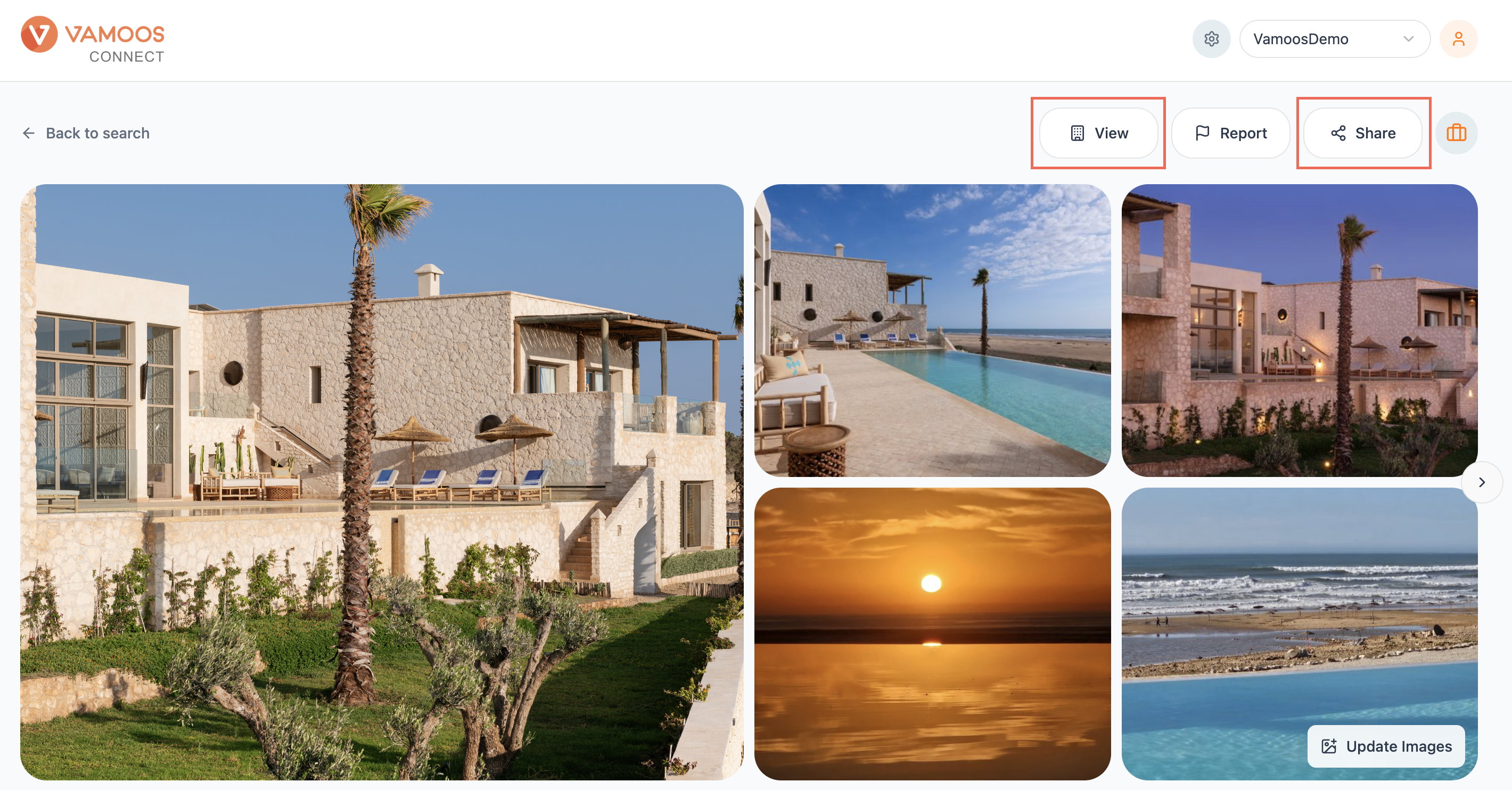
How to share it
Click Share and the link is copied straight to your clipboard. From there, paste it wherever you need: an email, a proposal, a message to a client, or a chat with a colleague. No login is required, so anyone with the link can open the branded profile straight away.
Before you share: make sure you've clicked Publish on any edits first. Only published changes appear in the shareable link, so if you've customised the summary, facilities, or details, publish them before sending the link.
Best-practice tips
A few ways to get the most from shareable links:
Customise before you send. Edit the summary, tailor the facilities, and set your best images first, then select the Customised version so the link reflects your brand and your positioning.
Refresh stale properties. If the Last updated date looks old, refresh the data before sharing so clients get accurate, current content.
Lead with your strongest image. The first image sets the tone, so reorder the gallery to put your best shot first.
Use it in proposals, not just emails. Because each link is per property, you can drop several branded profiles into a single proposal to build a full itinerary that keeps clients inside your brand.
Share internally too. Send links to colleagues to align on which properties to pitch, without anyone needing to log in.