
Refreshing property data
Hotel content changes. Refurbishments happen, amenities get added, and descriptions get rewritten. The Refresh data link keeps a property's underlying content current, so you're always working from the latest information.
Where to find it
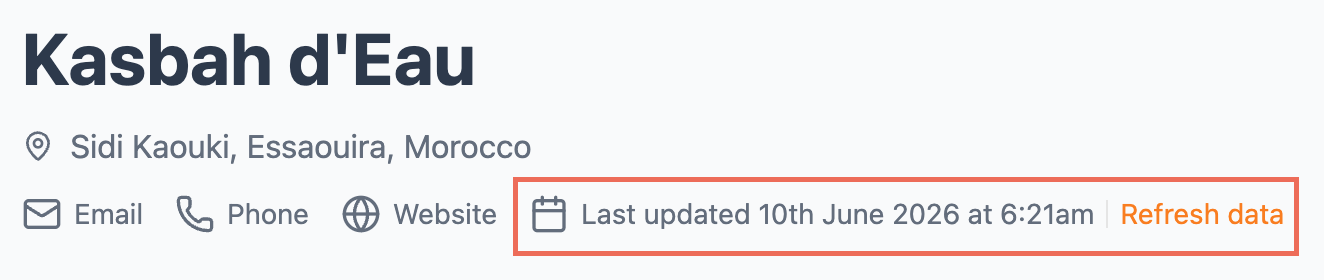
Look in the details at the top of any property profile. Next to the Last updated date, you'll see a Refresh data button.
The Last updated date tells you when the property's data was last pulled in, so you can see at a glance how current it is before you send anything to a client.
What a refresh pulls in
Clicking Refresh data pulls in the latest content for the property: images, descriptions, facilities, and contact details. It updates the Generated and Owner versions with everything currently held for that property.
Your Customised version is not affected. Any edits you've made stay exactly as you left them, so a refresh will never overwrite your own work.
When to use it
Refresh a property when you want to make sure you're working from the most up-to-date content, for example:
Before building a proposal around a property you haven't used in a while.
When the Last updated date looks old.
If you think a hotel has changed since you last looked (new facilities, a refurbishment, updated imagery).
Once you've refreshed, review the Generated or Owner version and re-apply anything you want to carry into your Customised version.