Editing a property profile
Found the right hotel? Now make it yours. Every property profile in Vamoos Connect is fully editable, so you can choose the best imagery, refine the words, and highlight the facilities your clients care about - all before you share.
Each section edits independently, so work through as many or as few as you like.
Before you start
A couple of things worth knowing before you dive in:
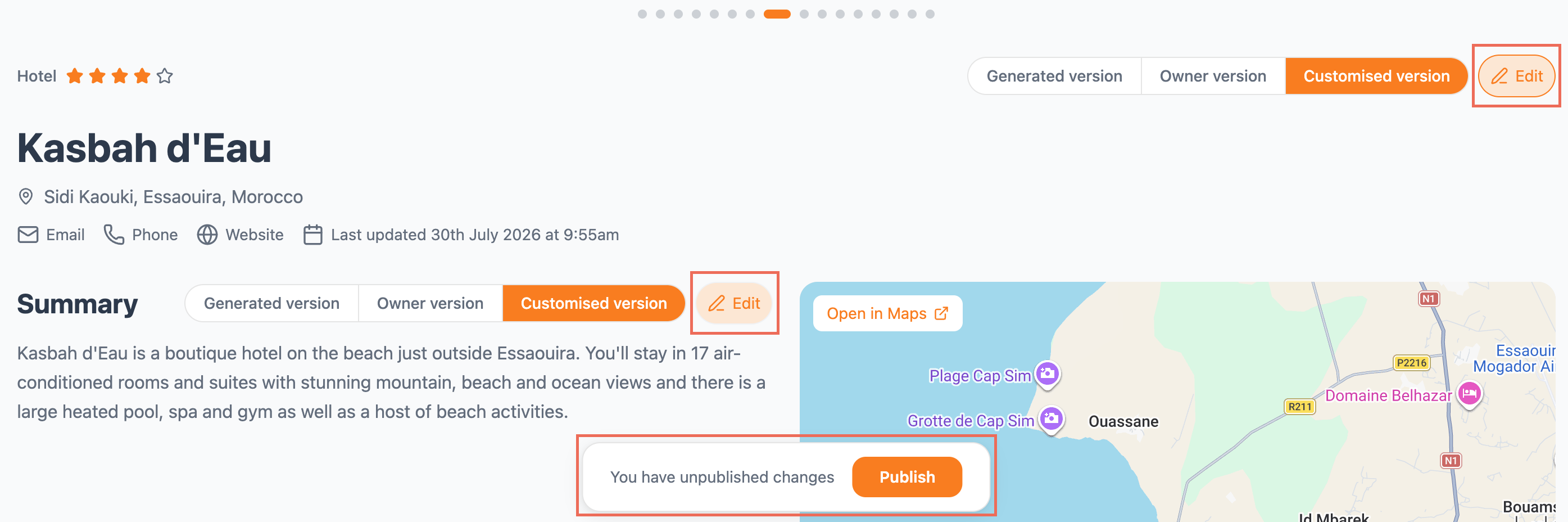
Whenever you edit features (the hotel details, summary, facilities, or property details), Connect saves your changes as a Customised version. Select Customised version on that section to make your edits show. It's the version your clients will see.
As you edit, Connect flags ‘You have unpublished changes’. Your edits aren't visible to clients until you click Publish. You can make all your changes across a profile first, then publish them in one go.
Managing images
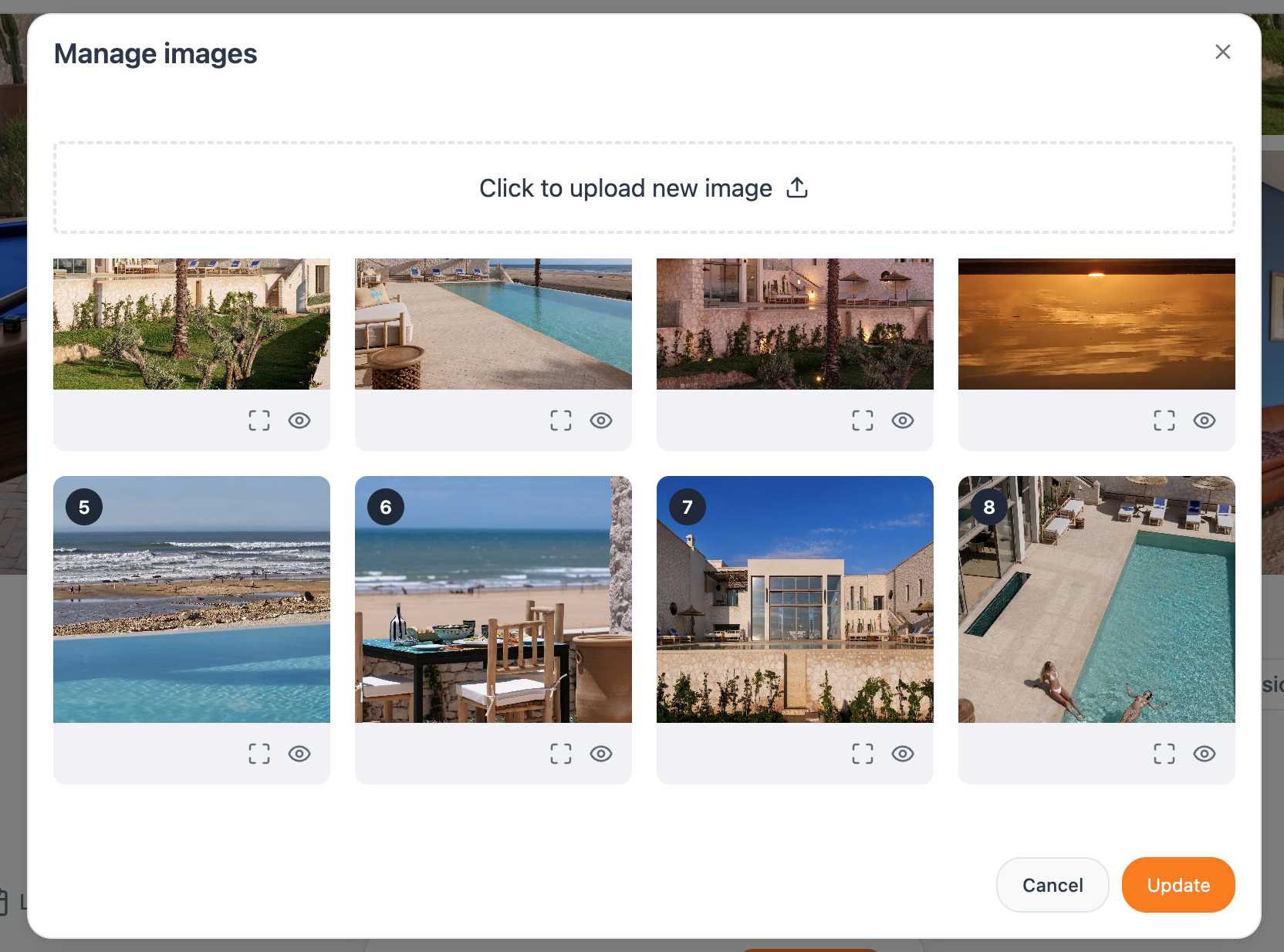
Click Update Images to open the image manager, where you control exactly what your client sees and in what order:
Upload your own images straight into the profile.
Reorder with drag-and-drop to set the perfect visual sequence - lead with your strongest shot.
Hide any image you don't want to show, without deleting it.
Delete images you don't need.
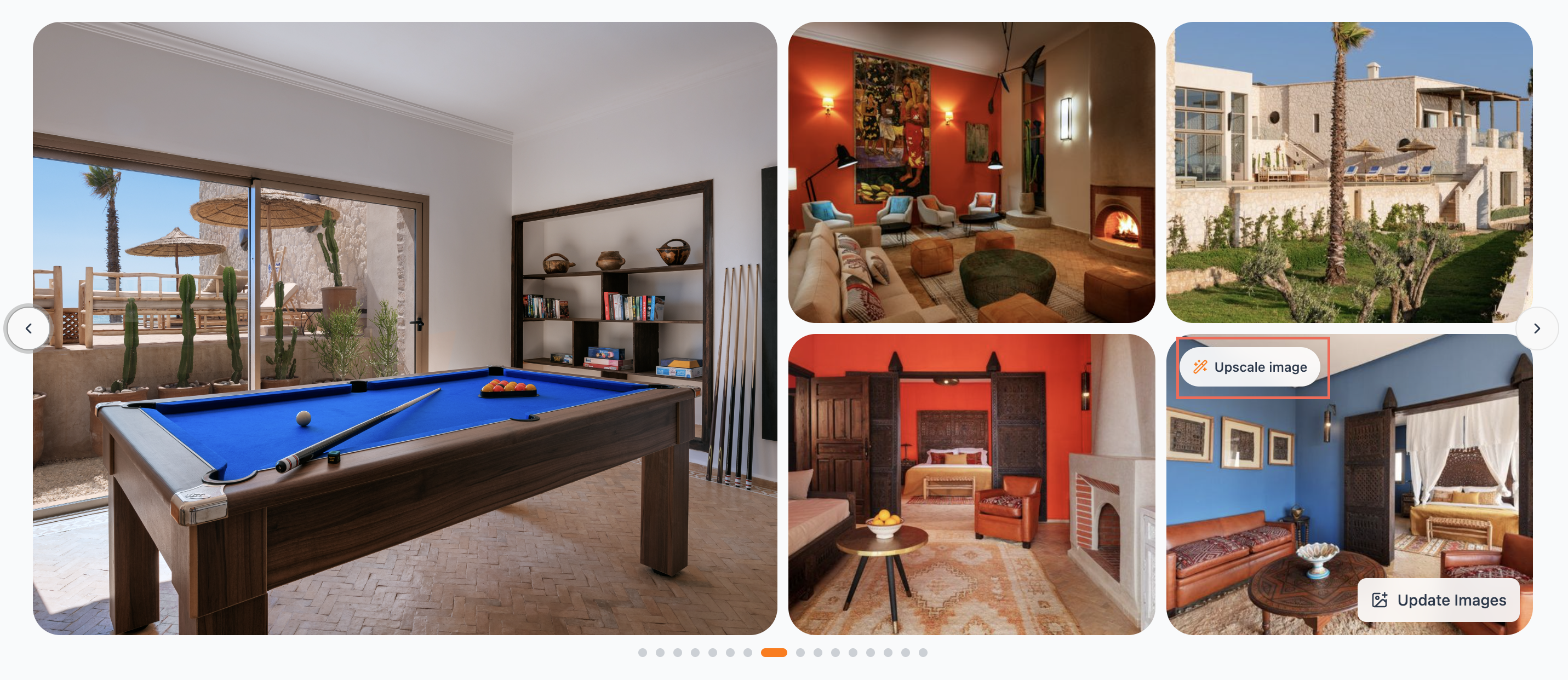
Upscaling an image
Working with a low-resolution photo? Hover over any image and click Upscale image to sharpen it with AI. Crisper imagery means more polished proposals - and higher conversion on your quotes.
The hotel details
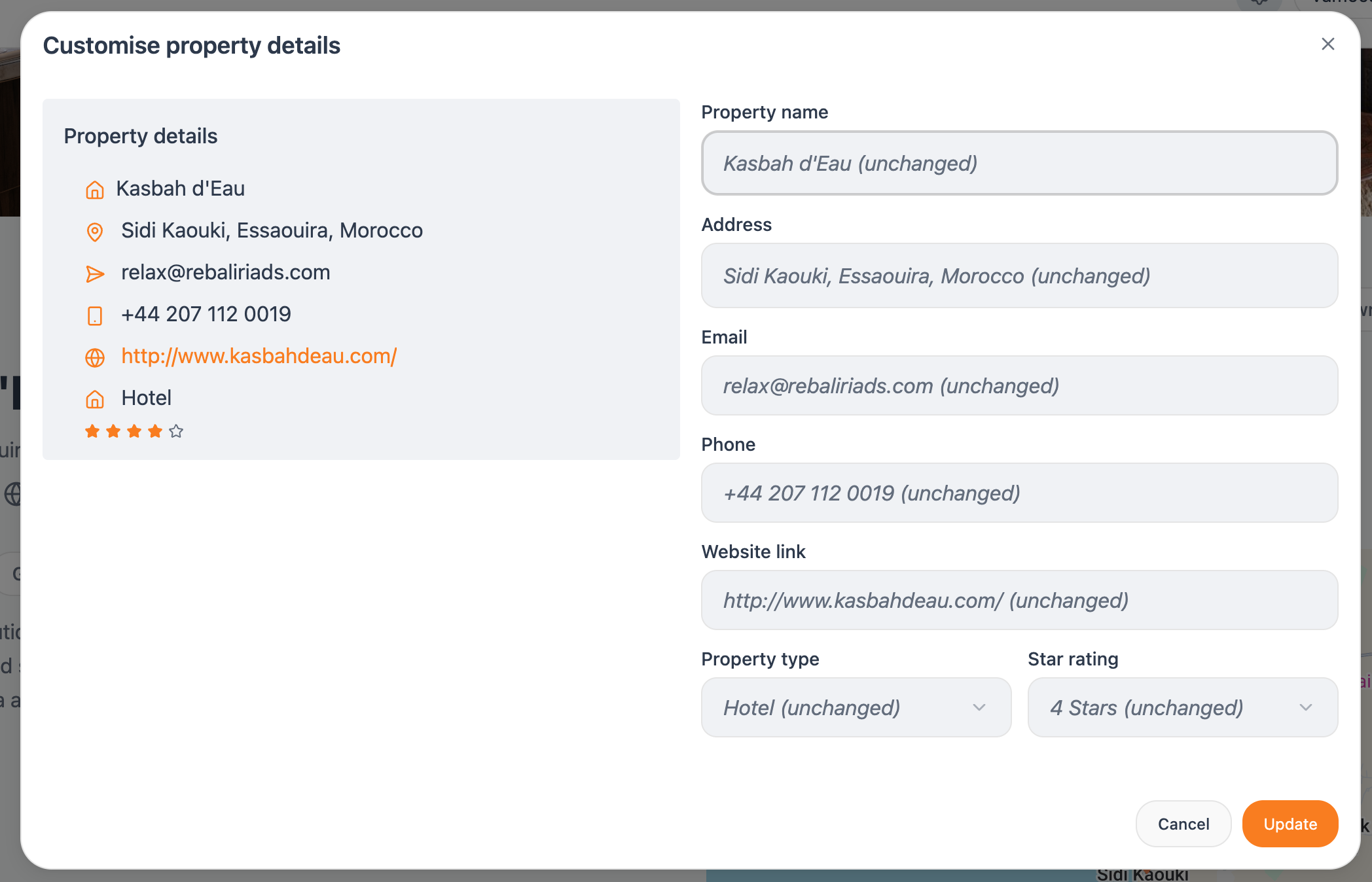
The details at the top of a profile (property name, location, contact links, type, and star rating) are all editable. Click Edit (the pencil) to open the Customise property details window.
On the left, you'll see the current Property details for reference. On the right, update any of these fields: Property name, Address, Email, Phone, Website link, Property type, or Star rating.
Any field left untouched shows as (unchanged) and keeps its existing value, so you only need to edit what you want to change. Click Update to save.
Editing the Summary
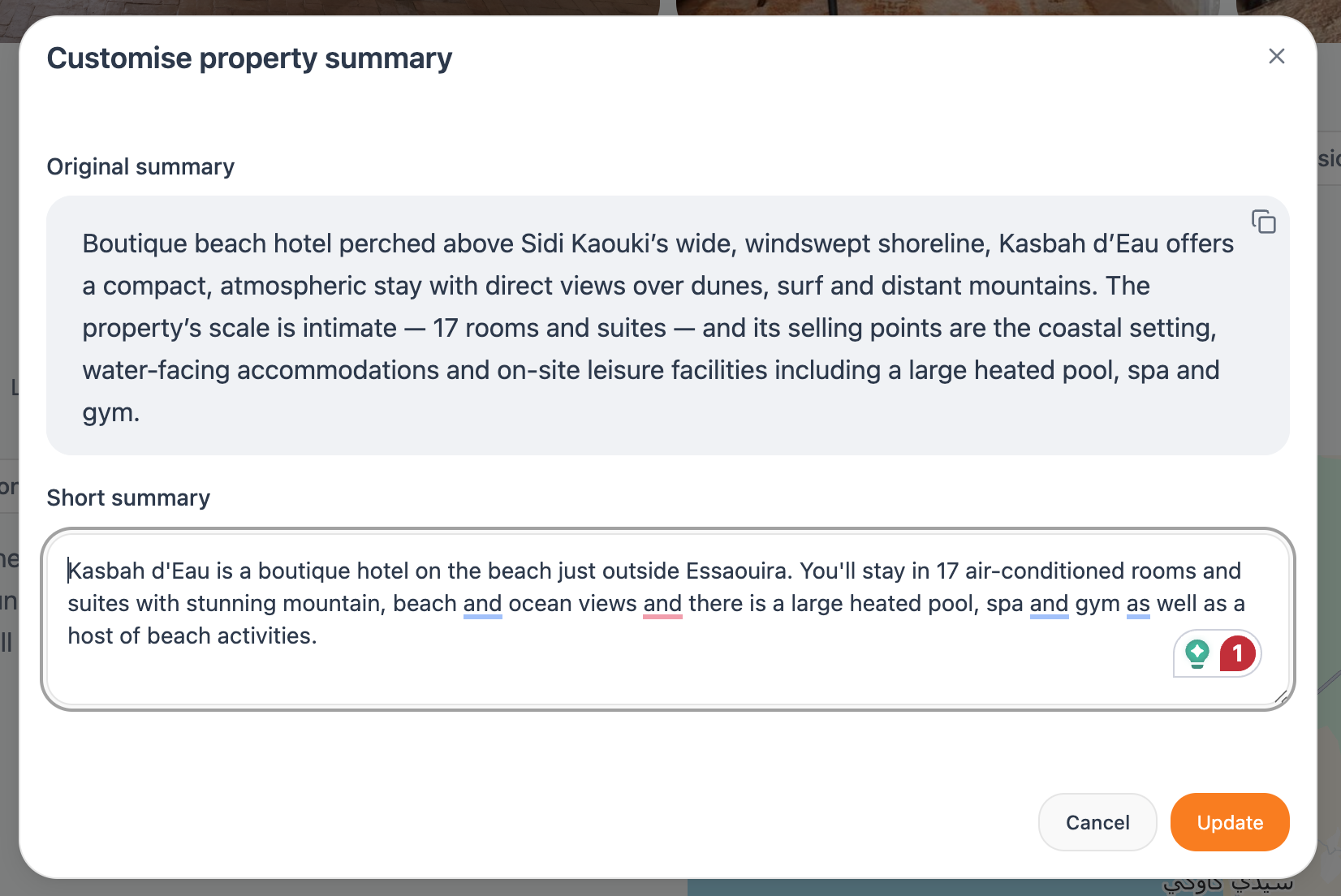
Click Edit (the pencil) beside the summary to open the Customise property summary window.
You'll see two fields:
Original summary - the source copy, shown for reference. Use the copy icon to reuse any of it.
Short summary - your editable version. Rewrite it in your own words and tone.
Click Update to save. Then select Customised version to make your edited summary the one clients see.
Editing Facilities & amenities
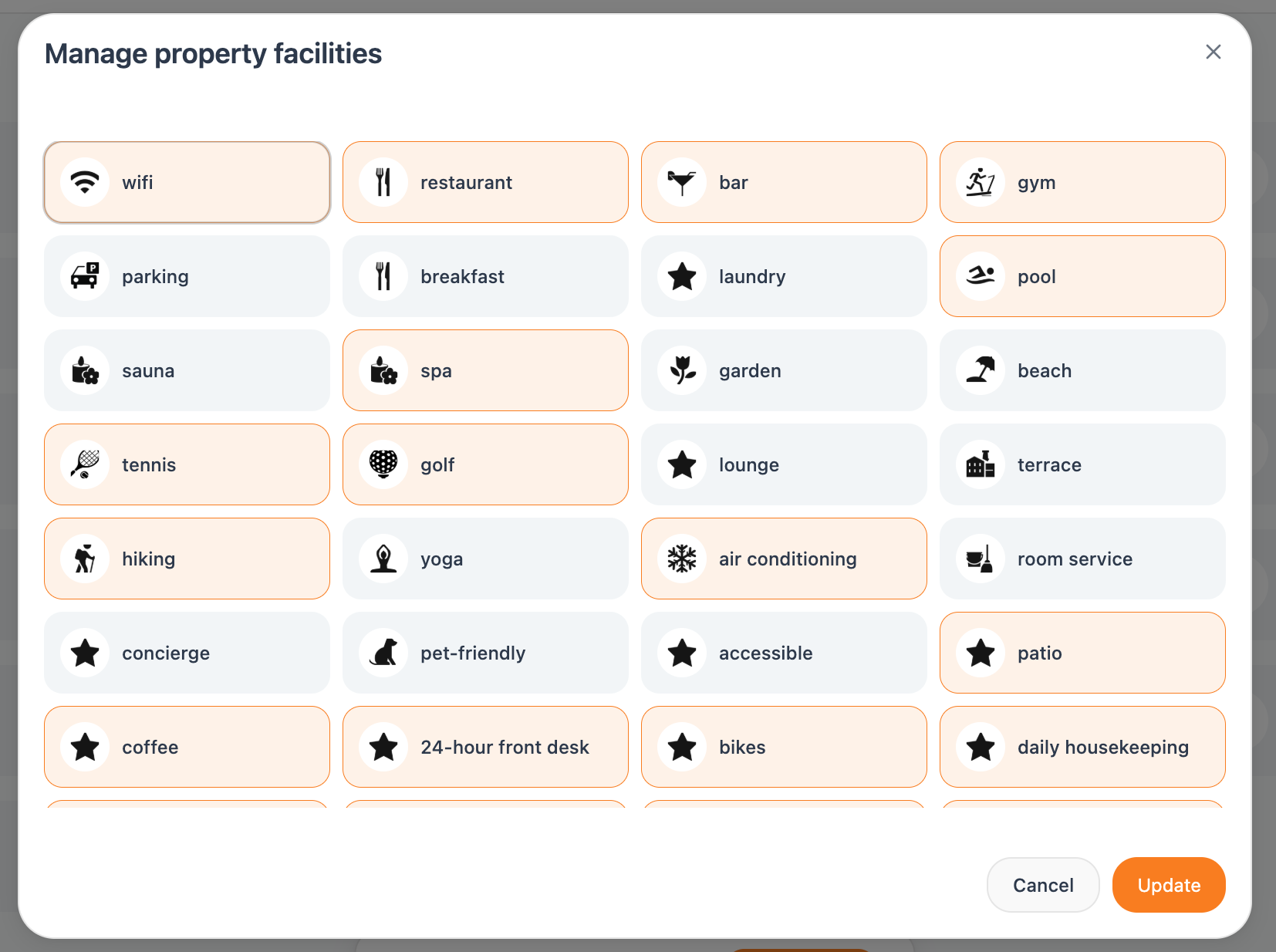
The Facilities & amenities grid shows each feature as a labelled tile - pool, spa, wifi, restaurant, and so on.
Click Edit (the pencil) to tailor the list:
Add facilities that aren't already listed.
Reword any facility to match your own phrasing.
Hide the ones that aren't relevant to this client or trip.
Save your changes, then select Customised version so your tailored list is the one that shows.
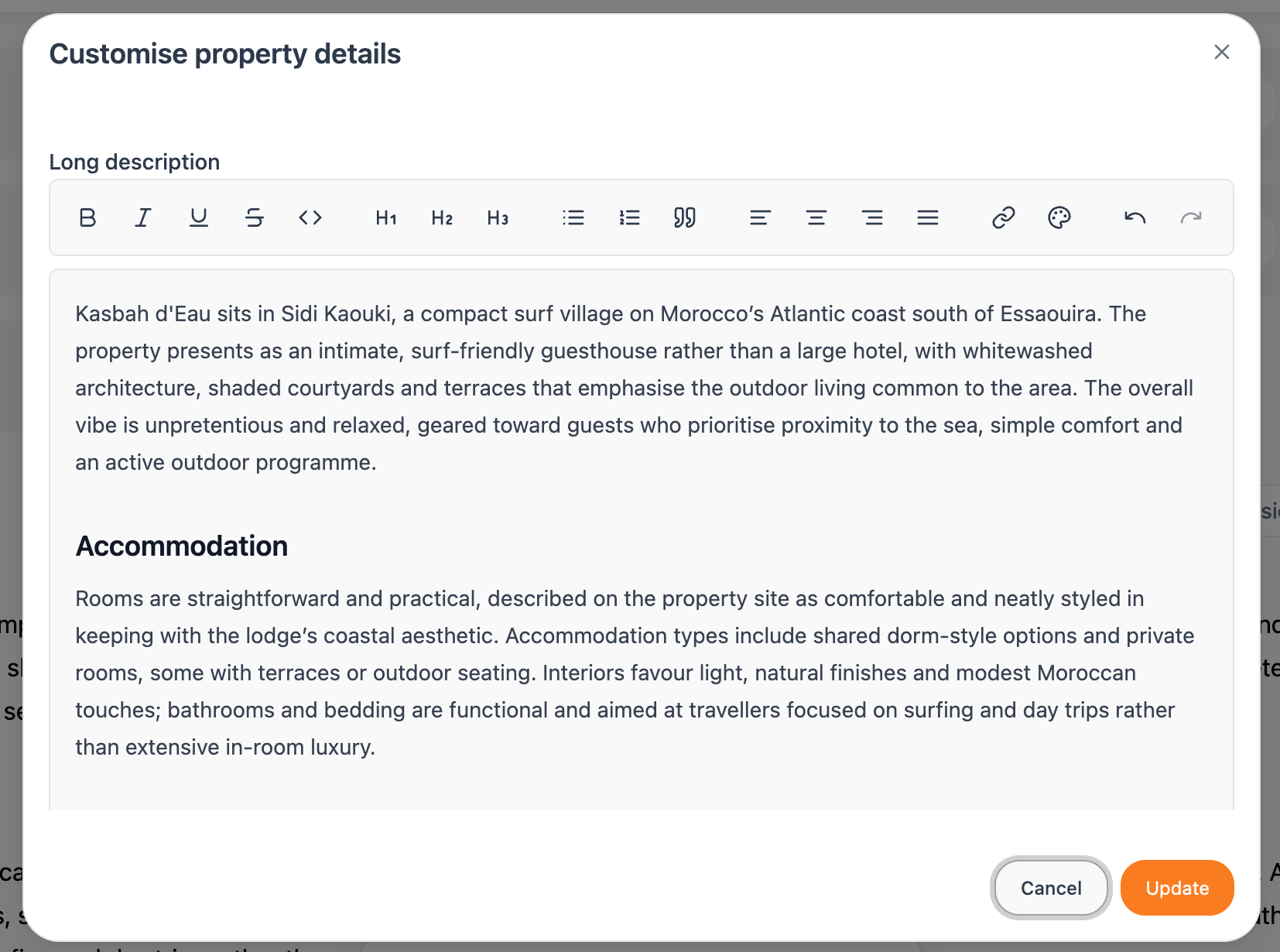
Editing the Property details
The Property details section holds the long-form write-up, broken into clear sub-sections:
Accommodation
Facilities
Activities (Local Area Focus)
Guest Review Summary & Conclusion
Click Edit (the pencil) to refine the copy in your own brand voice. Save, then select Customised version to publish your edits to the profile.