Portfolio functionality
Overview
Your portfolio is your saved library of hotels. Instead of searching for the same properties again and again, save them once, and they're ready whenever you need them. It's the quickest way back to the hotels you sell most, and the foundation of a ready-to-use content library across all your properties.
Adding properties to your portfolio
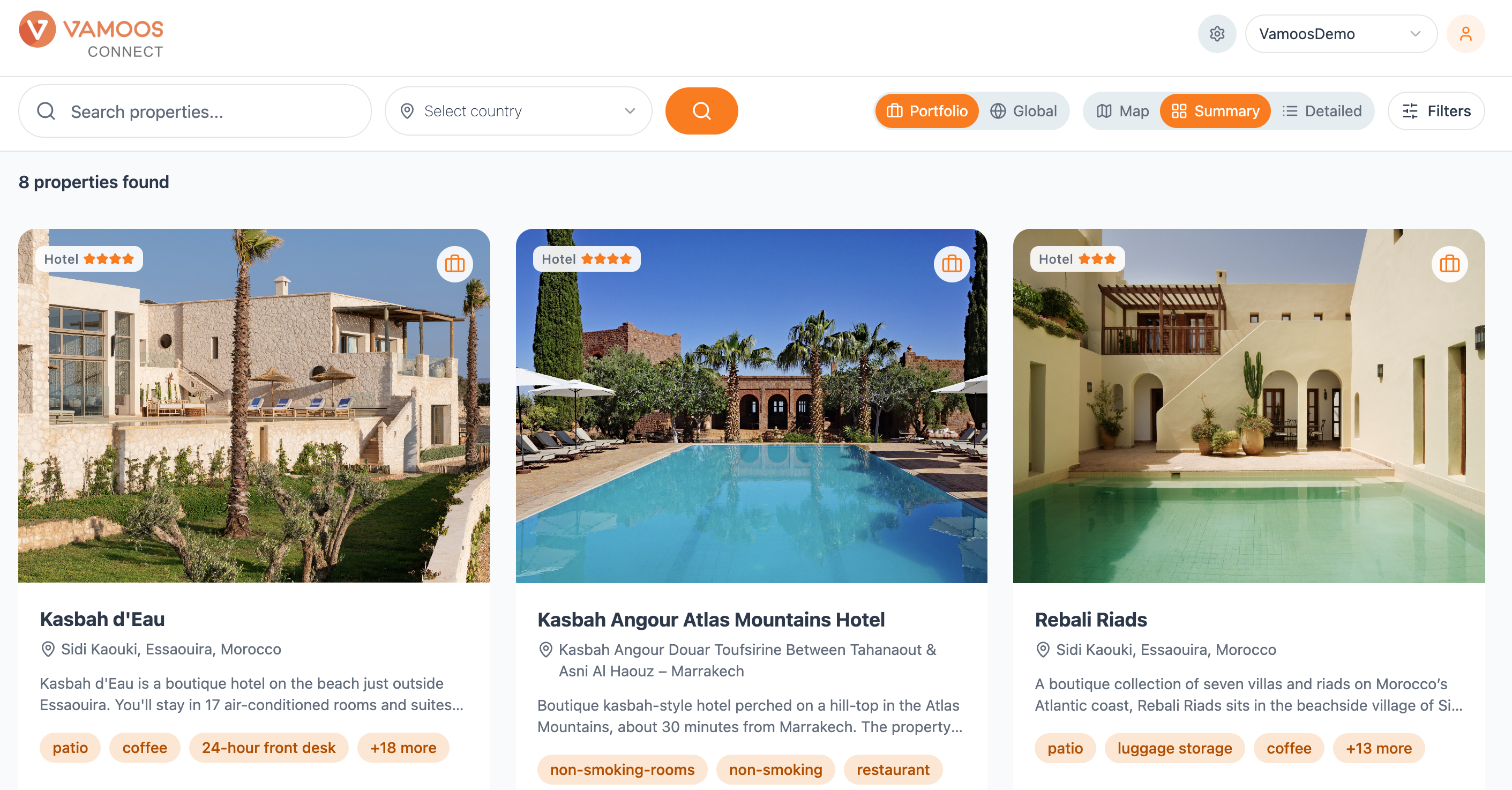
When you run a search, each result card has a briefcase icon in the top corner. Click it to add that property to your portfolio. That's it - the hotel is saved and ready to pull into your proposals any time.
Removing properties from your portfolio
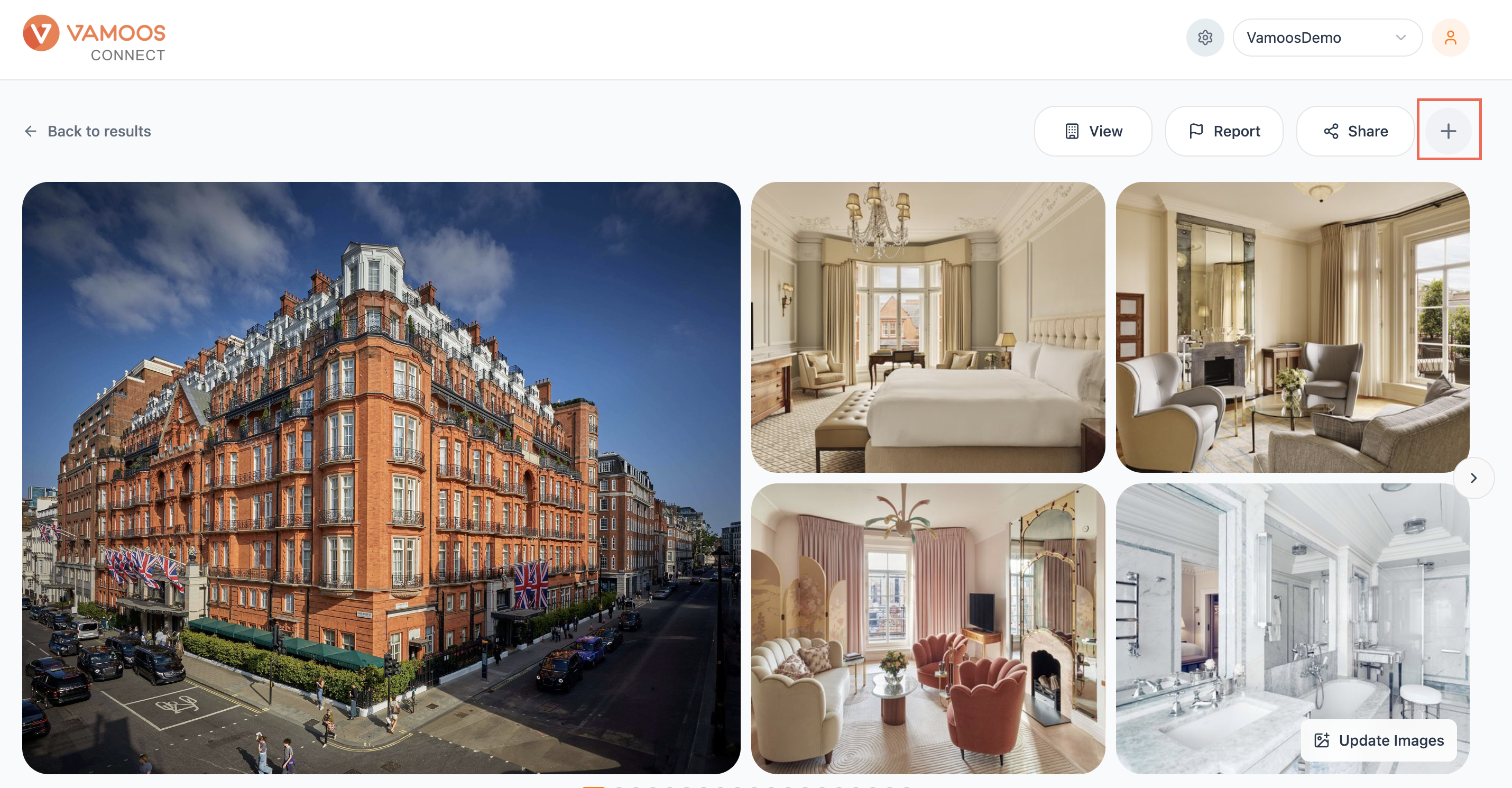
To take a hotel out of your portfolio, click the briefcase icon again to unsave it.

Accessing your portfolio
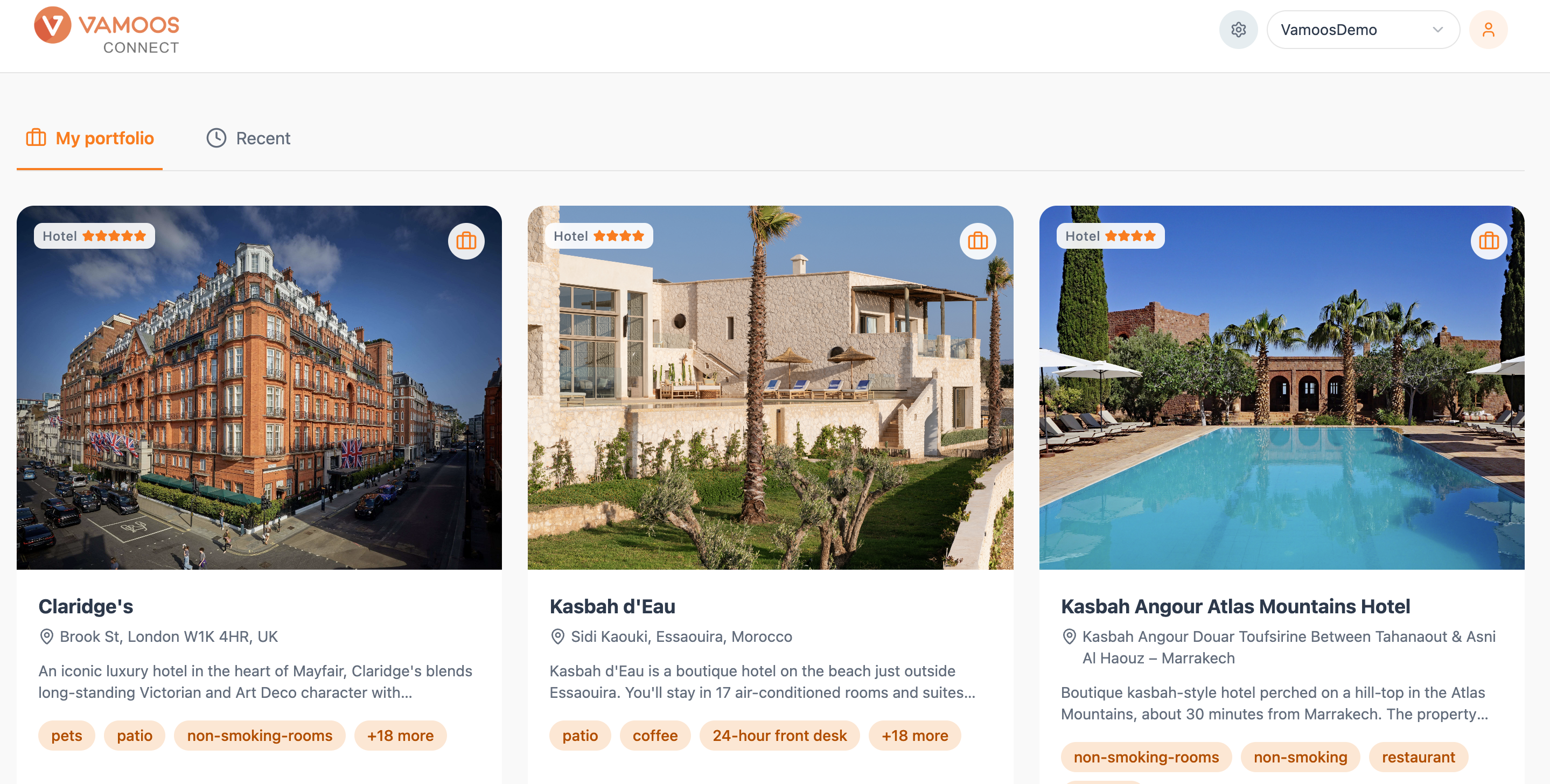
Your saved hotels are waiting on the home screen under My Portfolio. Open it to browse everything you've saved and jump straight into a property.
Searching within your portfolio
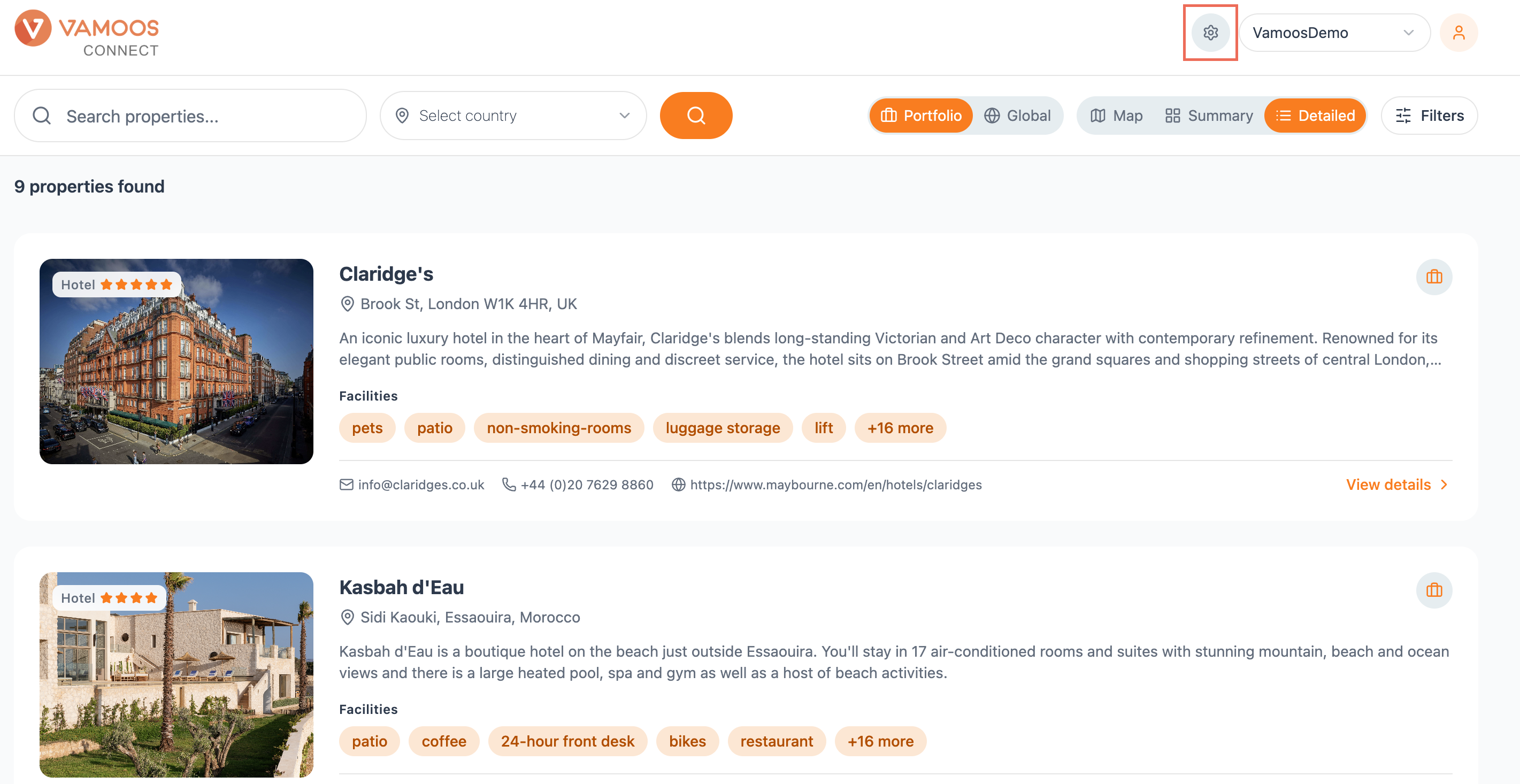
You can also reach your saved hotels from search. Flip the toggle to Portfolio and Connect searches only the properties you've saved, rather than the full global database. Handy when you know the hotel is already in your library and want to get to it fast.
Managing your portfolio in settings
Your portfolio also appears under Company settings → My portfolio, alongside Basic information and Own property, giving you another route to manage your saved properties.